I first heard about MRC while out on a run, listening to my weekly networking news podcast. I stopped dead in my tracks and listened to the rest of the discussion. Then I went home and started obsessively researching it.
MRC already puts some of the techniques developed by the Ultra Ethernet Consortium to work in production networks. I think Ultra Ethernet will eventually become the default stack for datacenter networks.
But first, what the hell is MRC?
MRC (Multipath Reliable Connection) extends RoCE v2. OpenAI, Microsoft, and NVIDIA developed the extension; the Open Compute Project published it as an open spec. OpenAI’s GB200 training clusters already run it in production.
It borrows a lot of ideas from Ultra Ethernet spec but it runs on NICs you can buy today.
To understand it, we need to cover a few networking concepts that have been around for years.
ECMP (Equal-Cost Multipath)
ECMP lets a router or Layer 3 switch forward traffic through multiple equal-cost next hops.
Suppose two servers have four equal-cost paths between them. ECMP can use all four paths, but how does it decide which one to use?
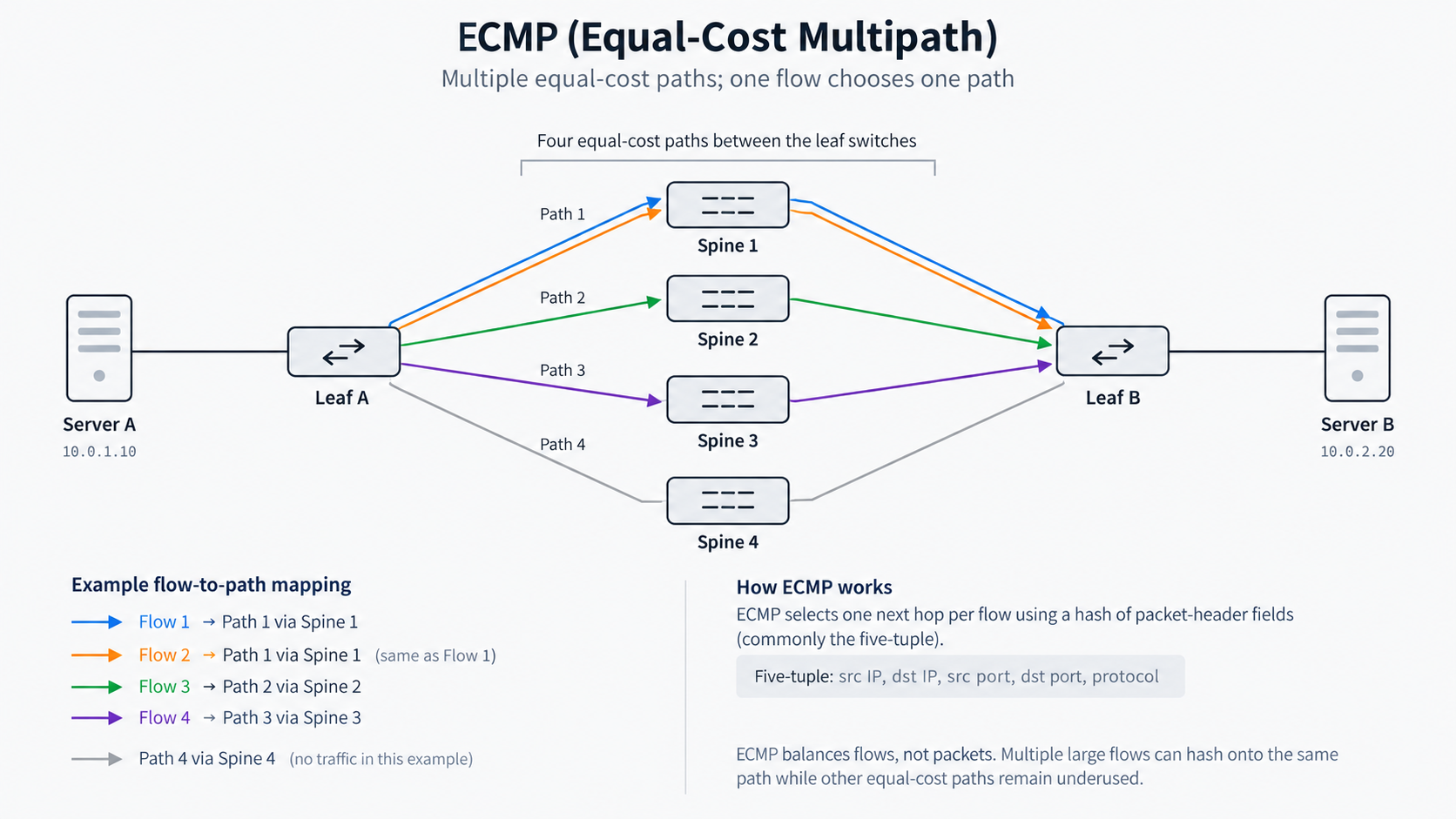
Most conventional ECMP implementations use per-flow hashing.
A flow is typically identified by five fields: source IP address, destination IP address, source port, destination port, and transport protocol. These are commonly called the five-tuple.
The switch runs these fields through a hash function to select one of the available next hops. Packets belonging to the same flow normally take the same path, helping preserve packet ordering.
ECMP distributes flows, not individual packets. So Imagine four equal-cost paths between two servers.
Several large, bursty transfers, like KV-cache transfers between disaggregated prefill and decode workers, can hash onto the same path while others have spare capacity. You end up with a few congested links even though there’s plenty of bandwidth available elsewhere in the network.
🗨️ If you’ve ever dealt with partner-operated OCI FastConnect, Azure ExpressRoute, or AWS Direct Connect links, you’ll know the frustration.
You call the provider because performance has gone to shit, only to hear, “Oh yeah, we had a fiber cut…. Failover worked, but ECMP ended up putting too much traffic on one of the remaining links.”
Your handoff never went down. BGP/BFD is happy, but latency is through the roof. A classic network brownout.
RDMA and RoCE
You may have come across RDMA in HCI solutions like Storage Spaces Direct (S2D), VMware vSAN or Proxmox VE.
It’s used to reduce CPU overhead for storage traffic between hosts.
How does it work?
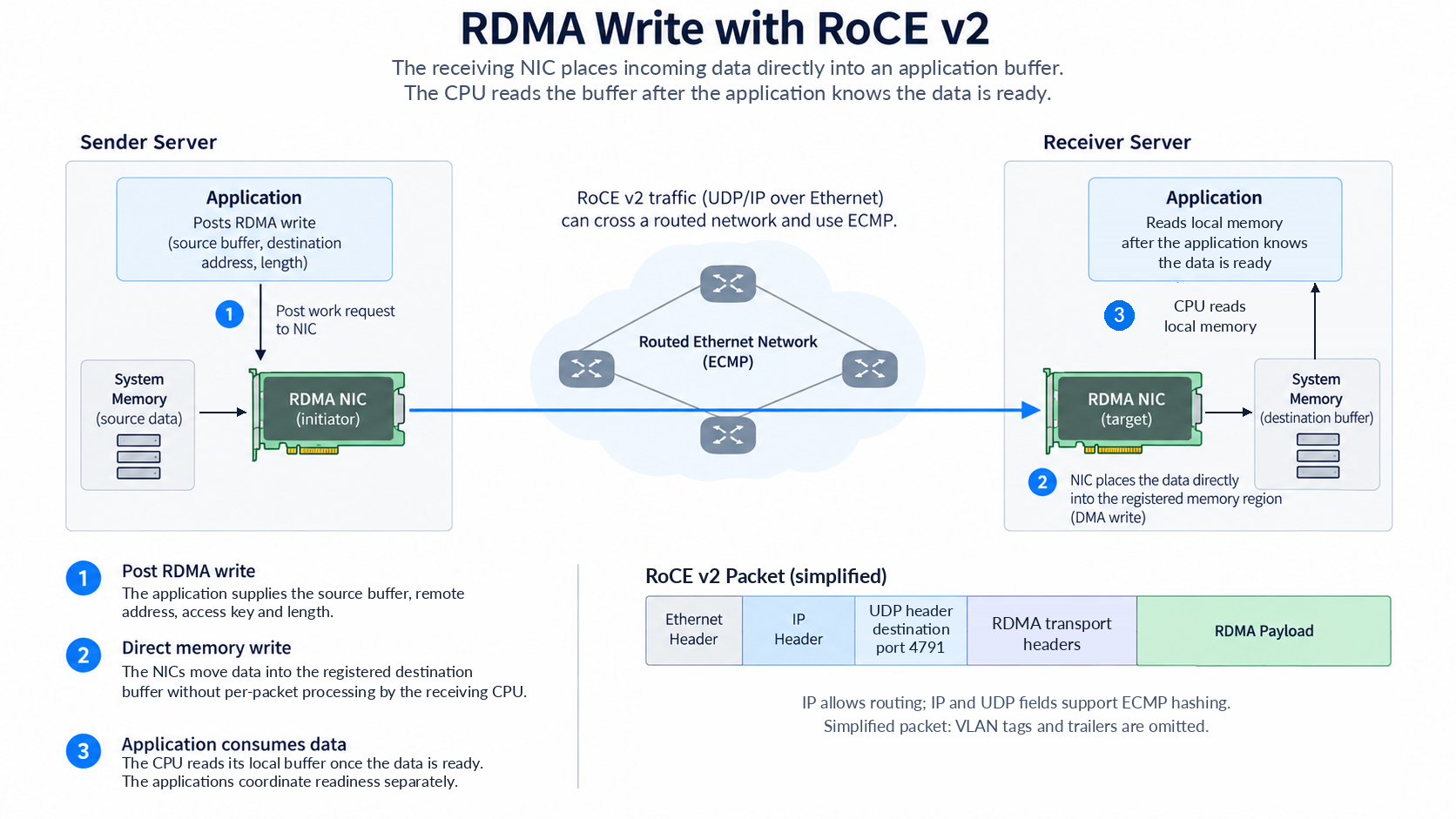
- RDMA (Remote Direct Memory Access) lets network adapters move data directly between application memory on different servers, without the receiving CPU processing each packet.
- For an RDMA write, Server A’s application tells its RDMA capable network card or NIC, what to send and where.
- The NIC reads the data from local memory and sends it to Server B.
- Server B’s NIC writes it directly into a registered application buffer. The receiving CPU does not process each packet.
- Server B’s CPU then reads the data from memory once the application knows it is ready. A plain RDMA write does not automatically notify the receiving application, so the software coordinates that separately.
Why MRC?
Sender
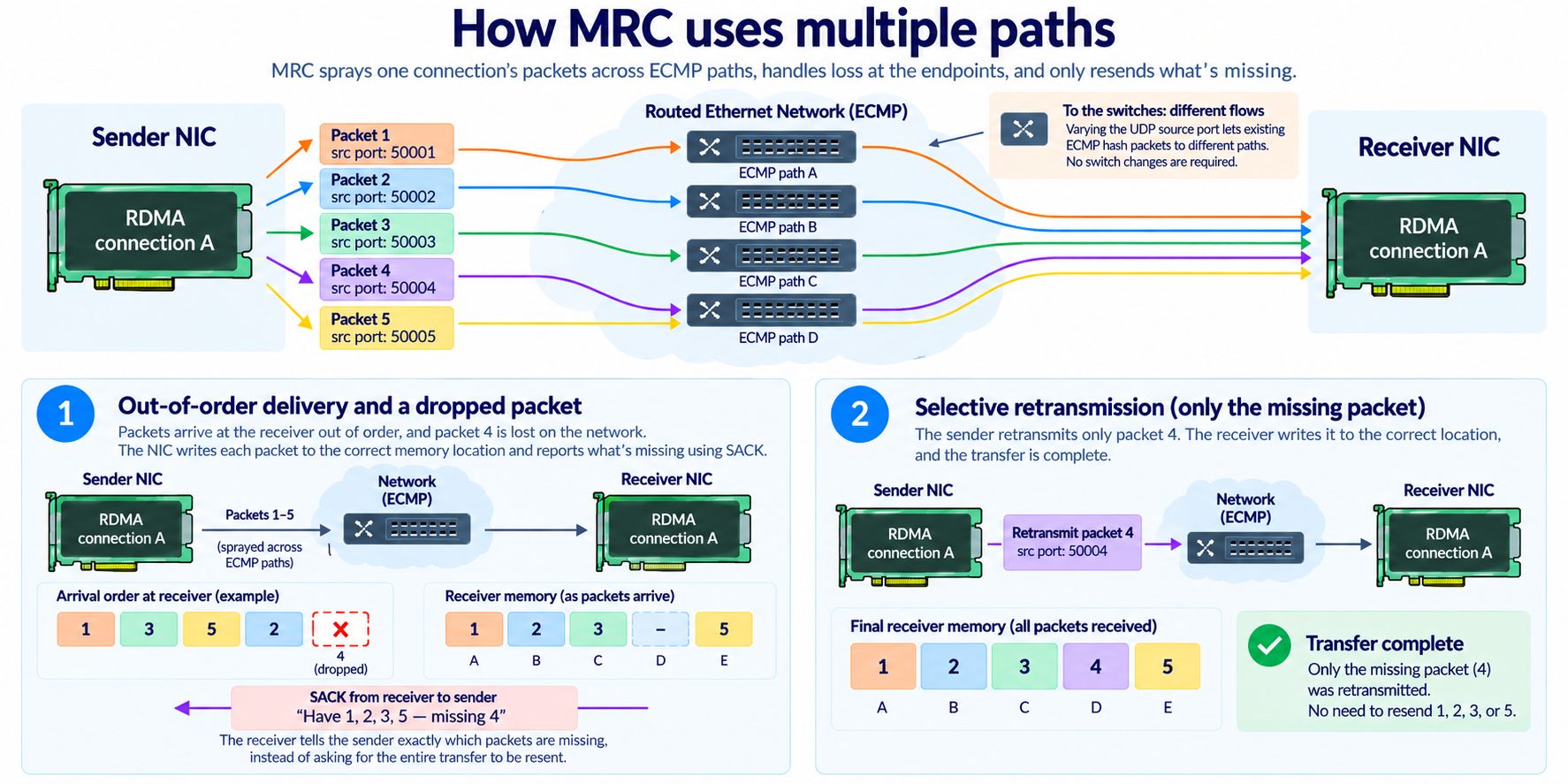
🗨️ Going back to our ECMP example above, with fixed hash inputs, packets from one connection keep taking the same path. Two large transfers can end up competing for the same link while another link sits unused.
- MRC takes advantage of the hashing the switches already do.
- With MRC the sending NIC varies the UDP source port from packet to packet.
- The switches continue hashing normally because the source port is one of the fields switches already use in their ECMP hash. (Switches don’t need new firmware to understand MRC)
- But now the changing input lets packets from the same RDMA connection take different paths. They call this packet spraying.
- Now one transfer can spread its packets across all four paths.
Receiver
- UDP source ports differ but the packets still belong to one RDMA connection since they all use the same RDMA transport header
- The receiving NIC (with MRC support) uses the headers to ID the connection and track packet delivery.
- Each data packet also carries the placement information needed to write its payload into the correct destination memory location.
- If packet 3 arrives before packet 2 (out of order), the NIC can write packet 3’s data straight into its destination memory location and record that packet 2 has not arrived. It does not have to hold or buffer packet 3 while waiting for packet 2.
- The receiver sends selective acknowledgements (SACKs) to report which packets have arrived and where there are gaps. In this example, its feedback effectively says: “I have packets 1 and 3; packet 2 has not arrived yet.”
- Packet 2 might just be delayed. The sender uses that feedback, along with timing information, to decide whether to wait or retransmit it. No need to resend the data that already arrived.
- The operation completes only once every packet has been placed and the sender has received acknowledgement for all of them.
What do we need to run it?
MRC is designed to run over best-effort Ethernet. Packets can get dropped, and the endpoints handle recovering them without relying on Ethernet flow control.
Ethernet flow control (PFC)?
Say your server is sending RDMA traffic into a switch faster than the switch can forward it. The buffer holding that traffic starts filling up.
Before it overflows, the switch sends a PFC pause frame back to the server’s NIC saying: “Stop sending this traffic class for a moment. I need to clear some buffer space.” The NIC pauses that traffic, then resumes when the pause expires or the switch tells the server nic to resume.
All connections sharing that paused priority have to wait, including those that did not cause the congestion
But this is not a turnkey solution. Just like RDMA, both endpoints (NICs) need the firmware support. The host’s drivers, RDMA libraries and communication software also need to support and use the MRC protocol.
Major vendors already have MRC implementations on High end 800GE NICs like NVIDIA ConnectX-8, AMD Pensando and Broadcom Thor Ultra.
Right now MRC is for frontier labs and hyperscales with training clusters at a scale only a handful of companies can pay for.
But we will all reap the benefits of this in more tokens, faster and cheaper, once it gets adopted widely across the world.
